


Stop running your project on your laptop
Ports collide, worktrees pile up and nobody can see your branch. Give every task its own cloud computer instead, with a link per service you can share.
Homemade team
3 min readNews
Your laptop was not built to run six copies of your project at the same time.
The problem
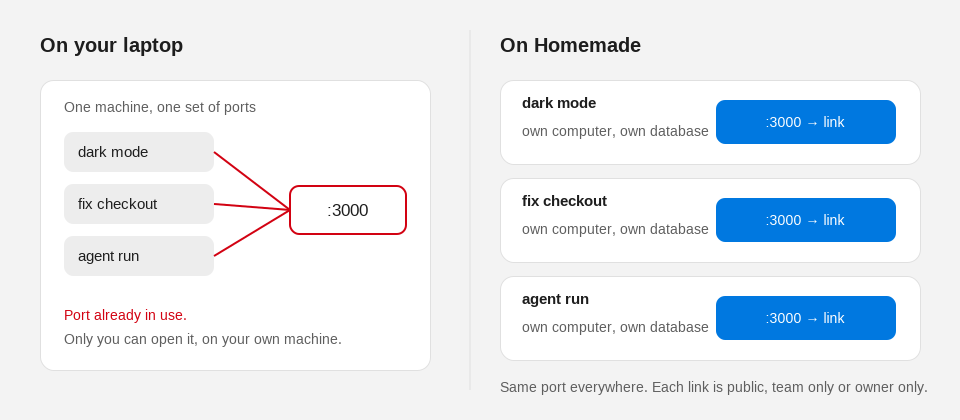
With agents, one person can work on a dozen tasks in a day. Each task wants its own copy of the app, its own database and its own port. On one laptop you get:
- Port collisions, usually from a process that never stopped.
- Git worktrees that nobody cleans up, and that rarely run side by side.
- A database per branch, eating disk.
- No way to show someone the result without a pull request or a tunnel.
It also means everyone on the team sets up a slightly different machine. That is how a build works on one laptop and fails on the next.
Why not just use worktrees?
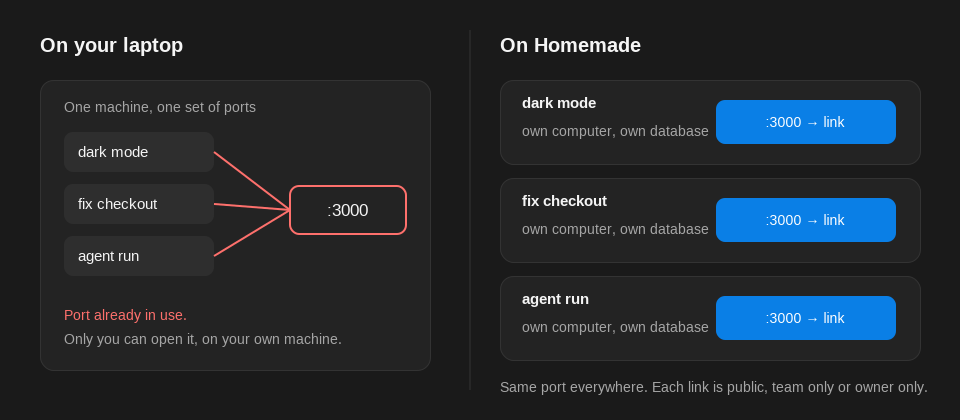
Worktrees are fine for writing code, and agents are good at them. The trouble starts when you want to run what they wrote. Two worktrees want the same port. A third needs the database in a different state. You stop one, start another, and pick a random port. After a long session somebody has to remove them all, and the agent usually forgets.
Docker can isolate some of it, and that is a topic of its own. What you really want is for each task to look like a clean machine.
The fix
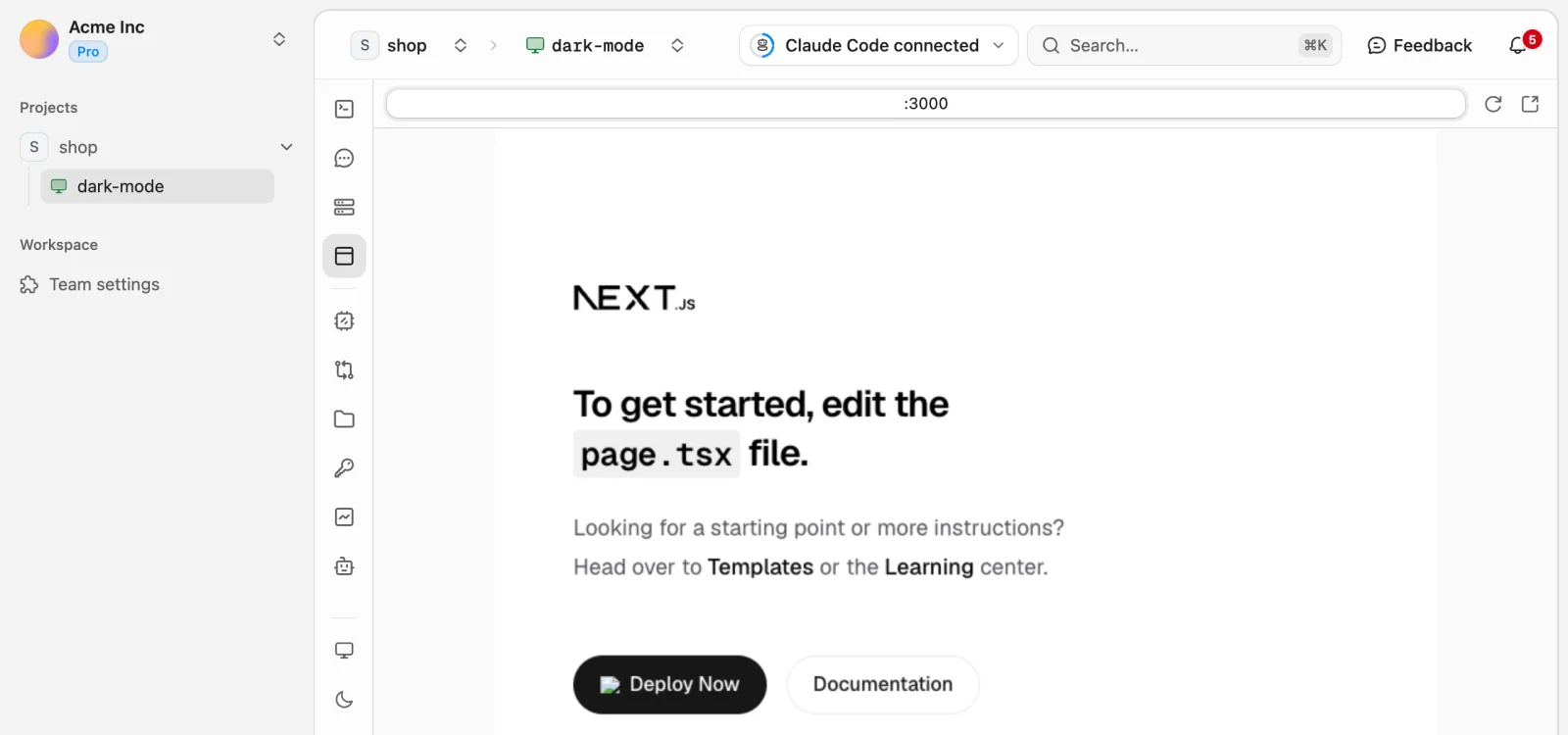
Give every task its own cloud computer. That is Homemade. A computer is a real Linux machine with its own disk, started from your project's setup, so the app and its services are running when you open it. It is ready in seconds.
Each task has a computer to itself, so the port numbers can stay the same. Nothing collides, and nothing runs on your laptop.
How it works
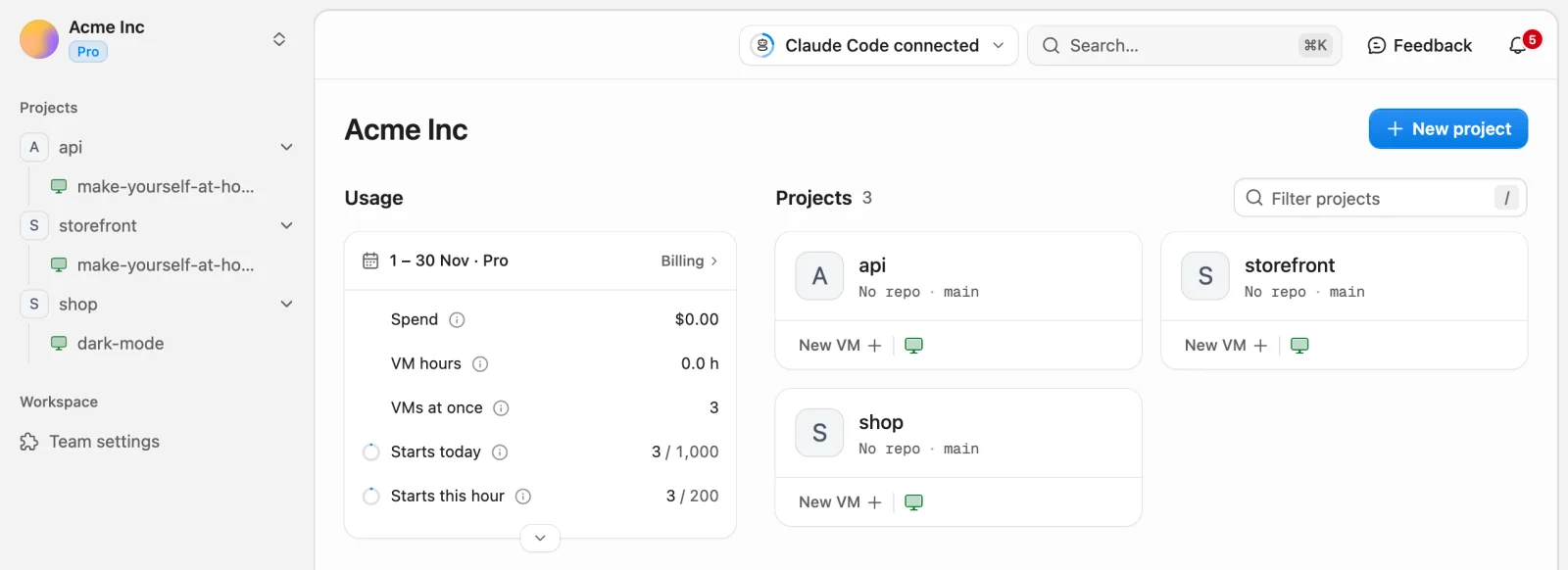
- Create a project from a repo or a template. If the repo has no setup yet, Homemade suggests one from what it finds: what to install and which services to run.
- Open a computer for a task. Your project starts, with the tools it needs already there.
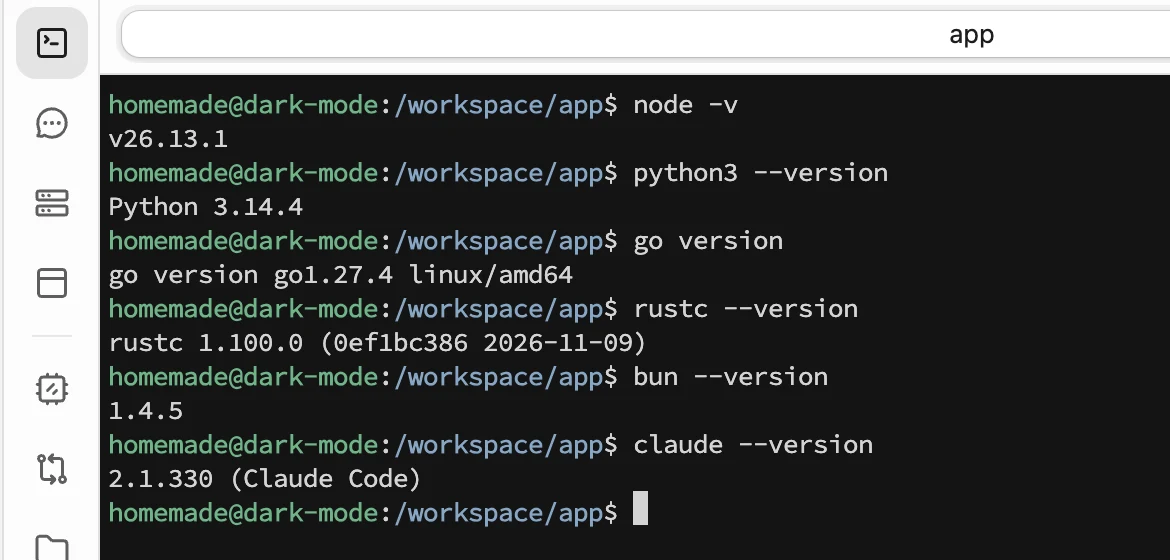
- Work in the browser terminal, an editor, or with a coding agent. The terminal works on a phone too.
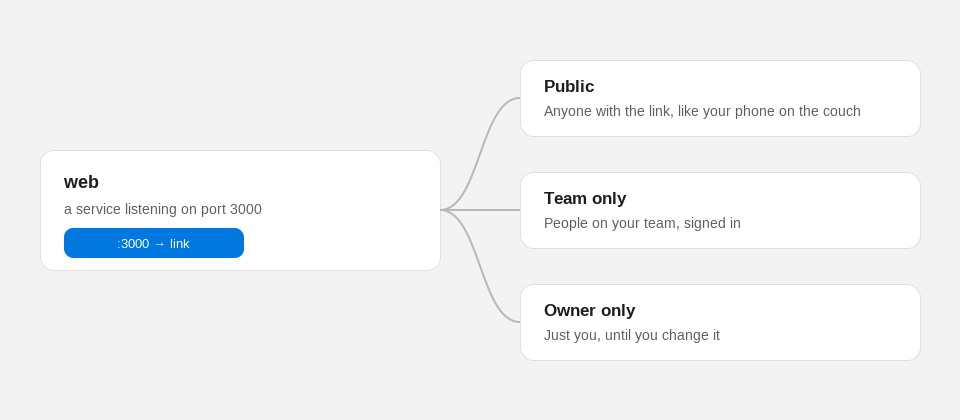
- Share a link. Each service has one, and you pick who can open it.
- Leave. The computer sleeps when idle and wakes where you left it.
Who can see it
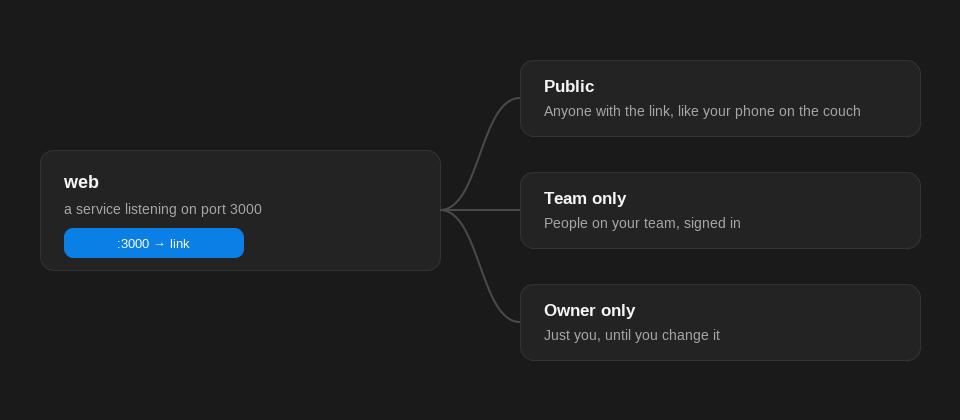
Access is set per service. Public means anyone with the link. Team only means people on your team. Owner only means you. You can change it at any time. If the computer is asleep when someone opens a link, it wakes up and the app opens a moment later.
A normal day
You start the morning with three tasks. Two go to coding agents, one you do yourself. Each has a computer. Around ten, a teammate wants to see the checkout change. You send the link for that one service and keep the rest private. At lunch everything sleeps. In the afternoon you open the same computers and they are where you left them, files and terminals included. At no point did you open a pull request just to look at something.
What is included
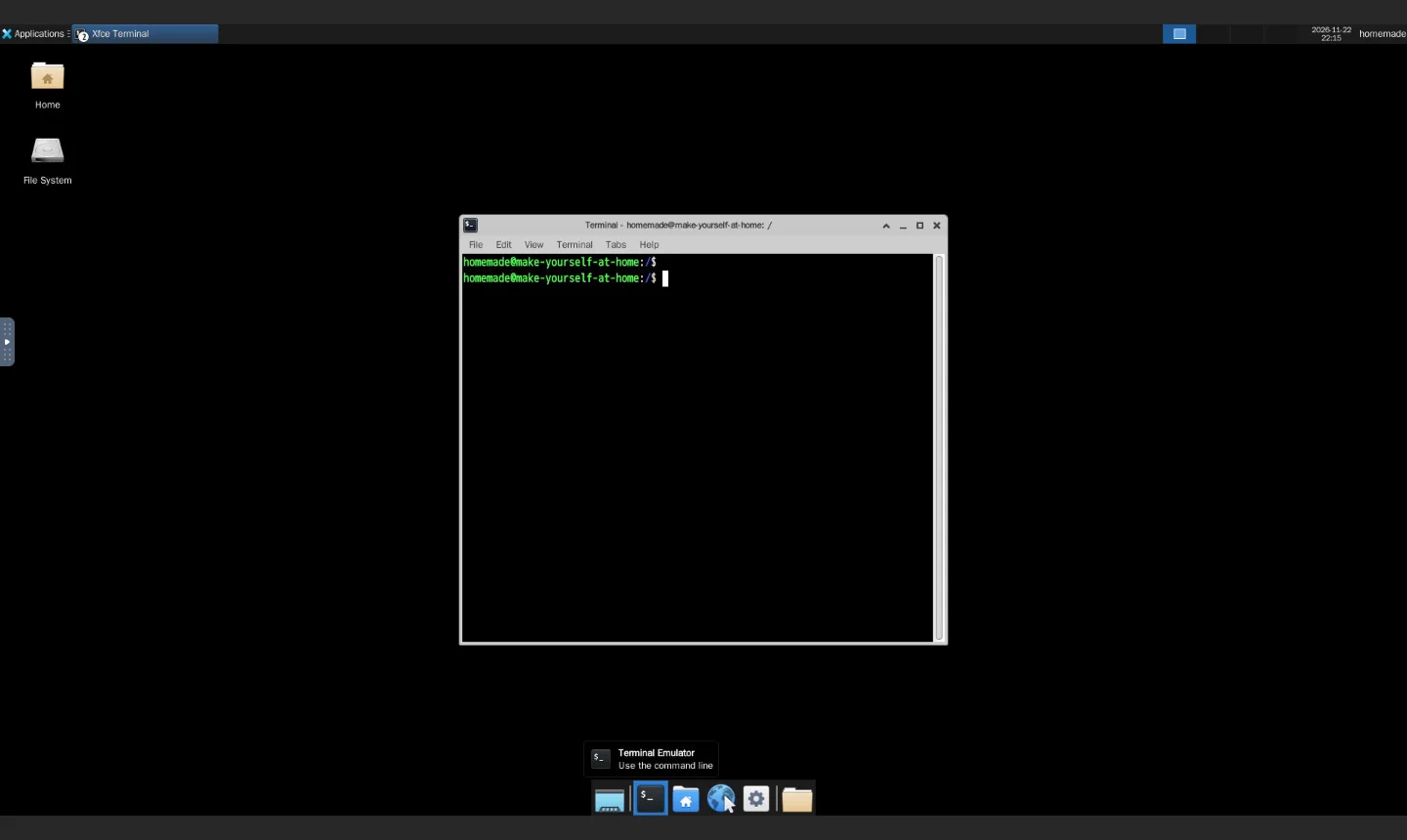
Projects and teams, so you can work on more than one project and share them. Node, Python, Go, Rust, Bun and dozens of other tools. Claude Code, Codex, OpenCode, pi, Kimi and Grok, which you sign in to once. A live desktop for when a terminal is not enough.
What it costs to start
The Hobby plan is free. It includes 25 computer-hours a month, 1 computer at a time, and the nano or tiny machine size. Sleeping computers don't use hours. When you want more, the Pro plan adds larger sizes and more computers running at once. See pricing.
Try Homemade
Every project gets its own cloud computers, with Claude Code and Codex signed in. The Hobby plan is free.
Keep reading
All postsWhy we built Homemade
The story behind Homemade: every task gets its own cloud computer with your project running, and a link you can send instead of a pull request.
4 min readNews
Sleep and wake, explained
What happens when a cloud computer goes to sleep: it keeps your terminals and running programs, wakes from a preview link, and costs nothing while asleep.
5 min readEngineering
Preview URLs and the 63-character hostname limit
Why every preview link is one DNS label, how project, computer, port and team share 63 characters, and how we trim names without collisions.
5 min readEngineering